

Google calendar is the most amazing calendar I have come across so far. And I have used many which include office 360, Microsoft Outlook, a couple of LMS’s, Some mail clients but trust me the calender.google.com is awesome.
Here we are just going to look at the tip of the iceberg which is to understand what a Google calendar invite is and how to use it for our own benefit.
What is a Calendar?
Silly question…right! hmm… I know. you must be thinking who doesn’t know what a calendar is? well so for starters, I was not knowing fully about it. I admit it with no shame. Because it’s quite a complex thing in itself when we are talking about digital calendars.
Google calendar Invite
Unlike the conventional printed wall hanging or desk-top flippable calendar, the digital one has many options and it becomes extremely smart when hosted on a cloud server and synced over multiple devices. Can be accessed from remote locations via the internet and be connected with your email account to smartly find out schedules from your mailbox and list them out as events and automatically set reminders and notify you in advance.
Yes, it’s not fiction! Everything said above is possible with Google Calendar and countless smart people across the globe are using it on a daily basis to increase their efficiency. You must have heard this phrase “sent you a Calendar Invite” quite a number of times if you work in a corporate setup. what it simply means is that someone you know has created an event and added you as a participant. you are informed about it via a Calendar invite in your mail and upon the proper response from your side, they will receive a notification about your acknowledgment of the invite.
Enough talks. let’s see what it looks like.

In the above screenshot, we can see an event is being scheduled for NOV 05 2020 at 11 AM. We can also see one organizer (Google account used for creating the event) and one participant (I have used my personal Gmail account however it can be sent to any email). At the bottom, we see a Google Meet LInk, which will be communicated in the invite as well.
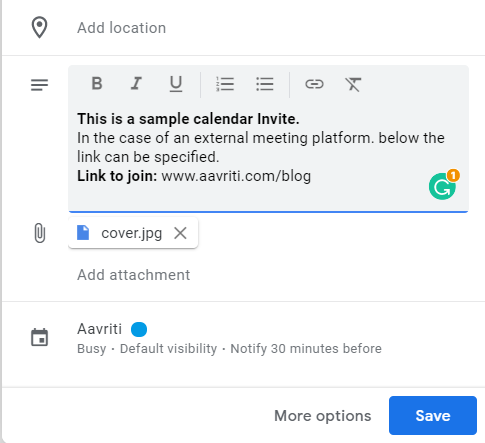
After scrolling down you get an option to add description with formatted text. In the description, you can also add hyperlinks and attach files. If you do not want to use Google Meet as a Web Conference service then in the description you shall give the link to join the meeting and disable Google meet link to avoid any confusion. Ones Everything is setup just click on save or you can explore further by clicking on more options.
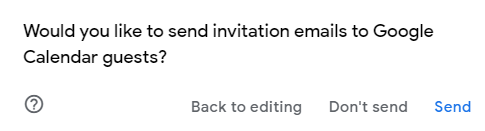
After clicking on Send you will be getting the above prompt with three options to choose from. Clicking on Send will send the Google Calender Invite to the specified Email Id’s. If you click on send still the event will be created but the Calender invite will not be sent to participants and in this case, you will have to manually draft an email and send it to participants. If you do not send Calender Invite then they will not be reminded about the event as per notifications scheduled by you in more options settings.
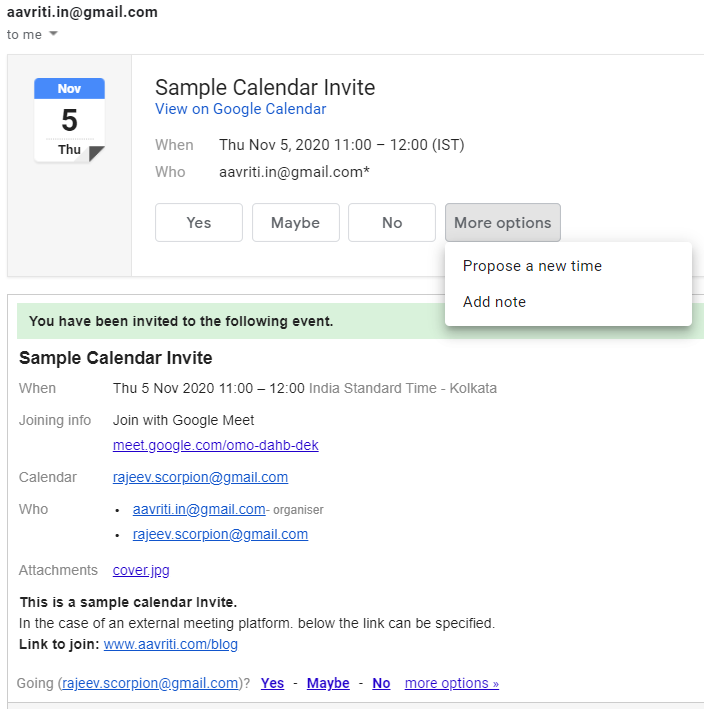
The above shows how it looks like in the Gmail Inbox of the participants whom calendar invites has been sent. Here they has many options to choose from
- YES: Means you will be available for the meeting
- MAYBE: Means you are not sure, people should not wait for you to start
- NO: Means you will not be able to attend
- More Options: Clicking on this will let you propose a new time / specify as reason and notify the organizer
The Nicely formatted box at the top in the above screenshot may only be rendered in Gmail Inbox for other Email Service providers teh bottom part will be available with all the similar options.
You can also notice the attachment is also available to download via a link in the Calendar Invite.
Do’s & Don’t
After sending the calendar invite you must not send another email to create confusion. Just the calendar invite is sufficient and more than what is need to set up an online/offline meeting. Just because sending emails is free we must not abuse it.
You can install the Google Calendar app on Android / IOS phones or Tablets as well. The features and functionalities are exactly the same. For desktop/ Laptop you can also create a Google calendar app yourself and also there are some amazing chrome extensions available for absolutely free to propel your efficiency and take the stress of being organized and informed about upcoming meetings. will talk about that in a separate blog. Stay tuned!