
Here we will be having a look at the Top Features offered by Google Slides which puts its fierce competitor Powerpoint on its toe in the battle of Google Slides Vs Microsoft Powerpoint.
Making presentations can not be avoided regardless of the field you come from. To support your ideas and pitch them with the appropriate intensity, we do need it to put it in a format that is easily understood. There is no doubt about the utility of Microsoft Powerpoint as software that was there since the very beginning and added to office productivity. They also tried their level best to keep up with the cloud computing era by launching Office 360. But still, when you are face to face with the likes of Google you got to be in your best game. However, so far we have not seen it from Microsoft when it comes to challenging Google Slides.
01 | Saving your work
yes… we have all suffered it. The trauma of losing our hours of work just because we got carried away with for presentations, kept on adding slides after slide, and just forgot to save it. And for some reason the laptop restarted and we lost all of it. I agree that now MS office also started regular backups and do get you your auto backed up the file when you next time start PowerPoint but still it’s very unpredictable if we gonna get all of it or not.
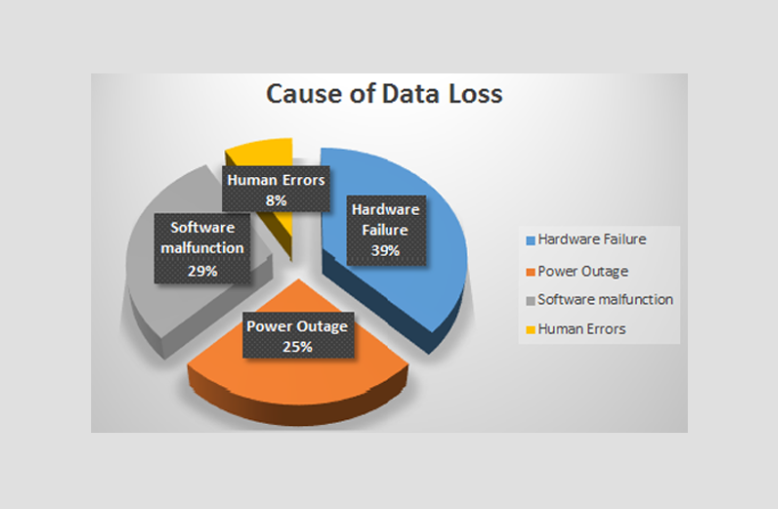
https://www.stellarinfo.com/blog/steps-recover-data-power-outage
But with Google Slides you are in good hands. Don’t stress about losing even a single word you typed coz it simultaneously saves it in the cloud. Essentially in simple terms, actually when you work on Google slides you’re working on a remote cloud computing Server and even if the power goes away or the internet drops, all your work is safe on the server.
02 | Sharing the work
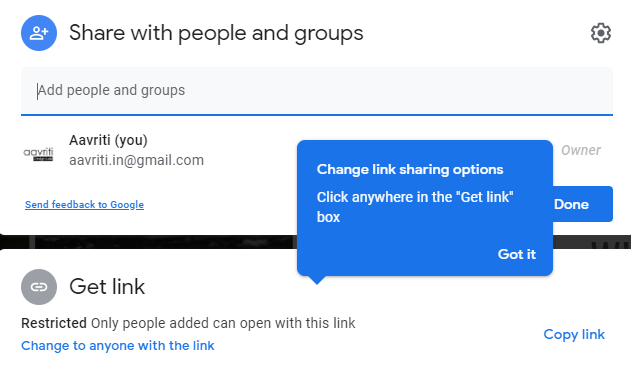
This is pure Bliss and not just true for Google Slides but all the other office productivity apps offered by Google. The struggle of transferring your presentations and worrying about its privacy is gone. With Slides & Google Drive you get the best of the parental controls. you can share with whomever you want and absolutely be in control of what they can legally do with your work.
03 | Google Search within the Slide interface
No matter which software you use for creating a presentation but one fact none can deny that we all rely heavily on Google image search for finding relevant visuals while making presentations. So why not do it right within the editing environment of Google Slides rather than fishing the image separately from the browser and then using it.
One amazing bonus to use google search within the Google slides is that it allows you to keep an eye on copyrighted content all the time depending on your settings and saves you from accidental falling into the consequences of copyright infringement. This feature clearly sets the bar high and pushes Slides higher when it comes to deciding the winner of Google Slides Vs Microsoft Powerpoint.
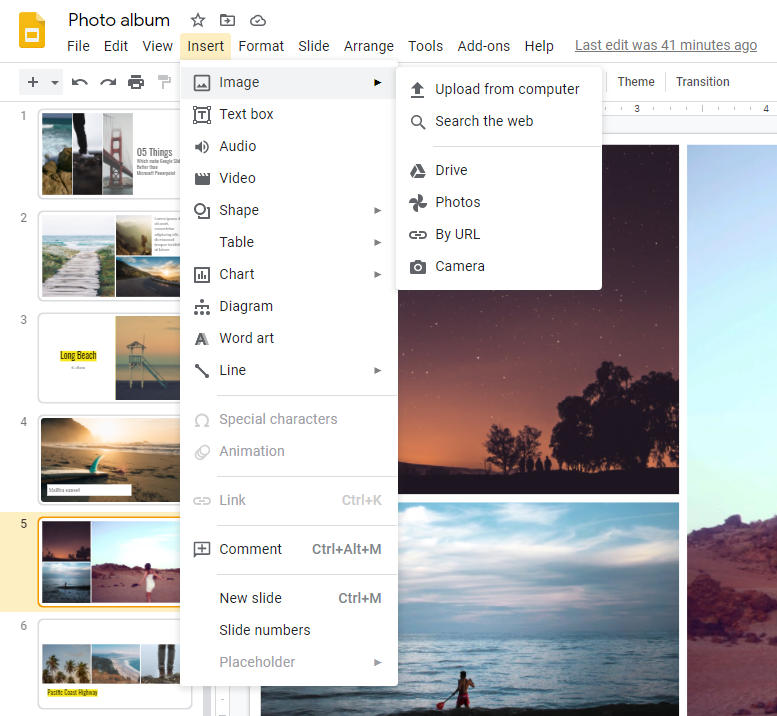
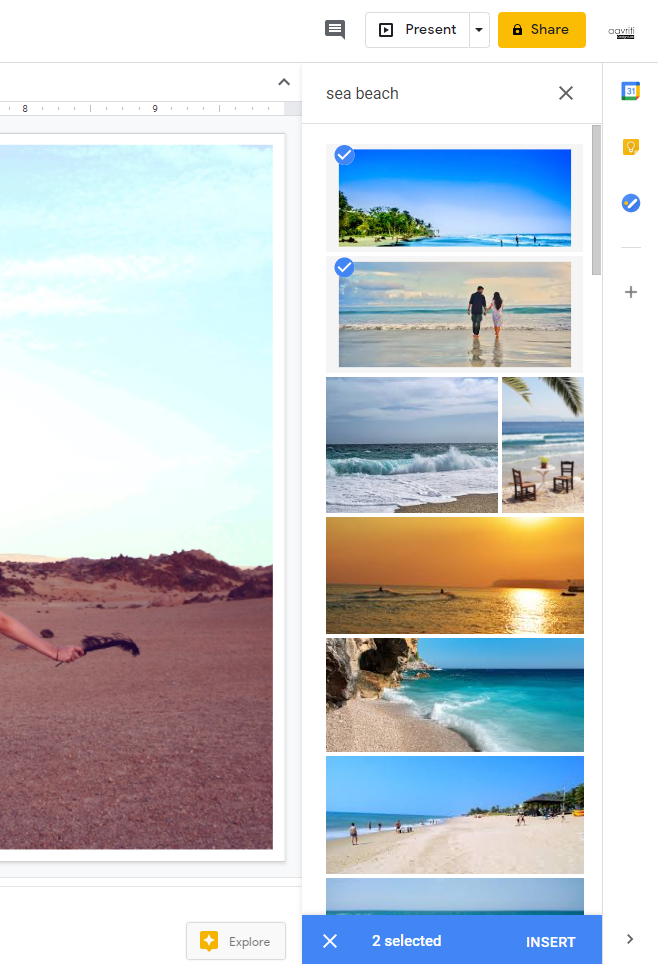
After clicking on Menu>Insert>Image>Search the Web. It opens a sidebar Google image search Widget within the interface of Google Slides. you can select multiple images and add all of them at once. Screenshot below
04 | Auto Grid
This is an amazing feature and extremely appreciated. Those who have struggled to transform and aligning multiple images in one slide would love it. But wait. When we say Auto Grid. Do not start looking for that Menu item or a Button somewhere in the interface because there isn’t any. But it works like a charm and maybe initially you won’t even notice the way it effortlessly puts your images one after another by using available space in the slide composition but careful observation will reveal the magic. Google slides automatically resizes the images and tries best to align and distribute the spaces.

05 | The Presentation mode
The Presentation mode in Google Slides sets the Standards so high that it clearly announces itself as the winner in Google Slides Vs Microsoft Powerpoint. It’s so feature-rich that it should be talked about in a separate post. But I would try to list down those below briefly.
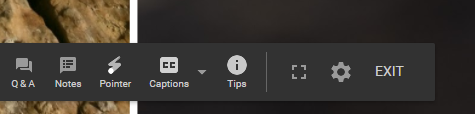
- Built-in virtual Laser pointer
- Live Closed Captioning
- Live Q&A Sessions
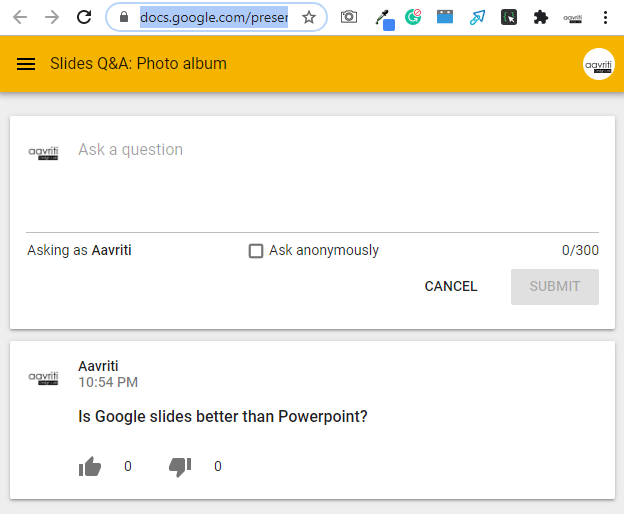
Live web interface where participants can ask questions from presenter in real time.
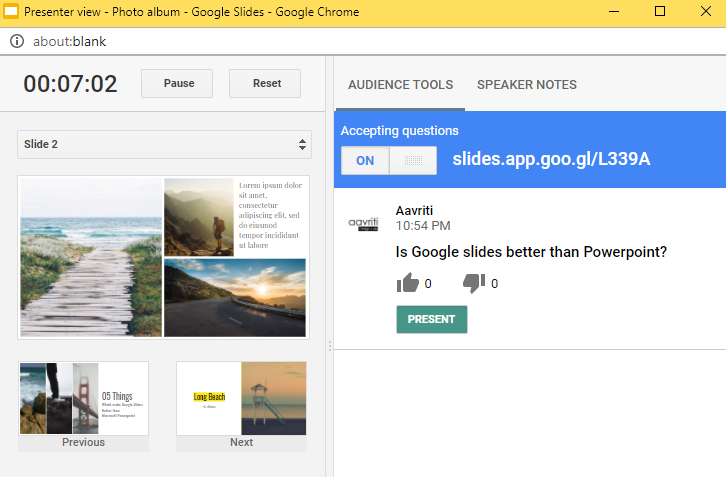
Above is a screenshot of a live Q&A Session happening over a presentation done in Google Slides. To explore the features and amazing functionalities we would require a whole post. Maybe soon I will do that so stick around.
And the last Blow | It’s Free !!
Nothing much to say about it. I should have put this right at the top of the list but then people would have said just because it’s free it’s not good.
Google lets you create a Gmail account for absolutely free and the Basic version of Google suite comes with that. The basic version only puts a cap on cloud storage and a few apps will not be available but when it comes to Google Slides, you get the complete full version with all of its features for free.
I believe now we have a clear understanding of the outcome of Google Slides Vs Microsoft Powerpoint. If you know more features, we would love to hear from you. Put your thoughts in the comment section below.