

This will show you how to easily create a shortcut in the taskbar for Google Meet and use it as a standalone app on a desktop/laptop.
Things you will require for this is just Google Chrome browser. It works on windows 7 onwards.
Step 01
Open Google Meet
Open Chrome and type meet.google.com
Step 02
Click on three dot menu on far right corner in the the address bar to get to this context menu

Step 03
Choose More tools > Create Shortcut

Step 04
Select Open as window from the popup dialogue box and click Create

That’s All ! You are done. Now the meet shall open in a separate window without address bar or Tabs. It will behave like an independent app (though its not because its still running a chrome instance only). But the resize works much better and content is more responsive compared to normal Chrome.
You will find a shortcut for Google Meet on desktop.
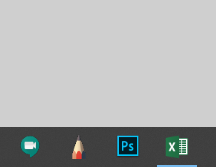
Now just drag it on to taskbar and it will be pinned to taskbar.
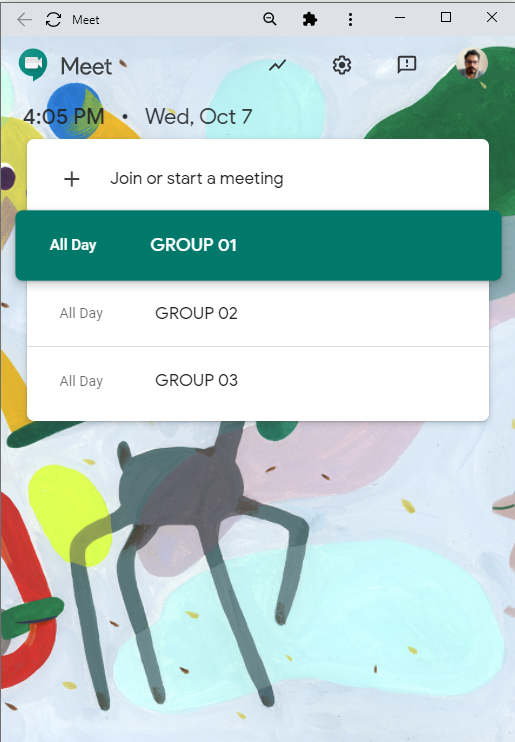
Enjoy Google meet as Standalone App.