

Saving and Restoring Google Chrome tabs is a feature that almost everyone needs. We have seen many of our friends working with 50 Chrome tabs at a time. The system slows down with multiple chrome tabs but we don’t want to lose out on the links we have found out after hours of research. we are too lazy to make a folder in the bookmarks and save them. But even if you save them as bookmarks, opening them again is a task in itself. So I decided to help them out to organize and manage their internet suffering experience.
Spend a couple of minutes here and Thank me later!
There is a lot of ways to do it but one chrome extension in particular proven its worth beyond my expectation. It’s called Session Buddy. And It’s Free 🙂

It will help you in making snapshots of chrome’s state and store it for future restoring. Below are a few of the screenshots explained for reference.

Above is the screenshot of Session Buddy’s interface. It can be accessed after adding the extension from the Chrome store with this link.
On the left-hand side, it shows three sections in a column. The first two are automatically created depending on your settings it stores the current session and maintains a time-based log of previous sessions. Session means the ongoing activity in multiple tabs in one Chrome window. Note that it will not keep track of separate Chrome Window or Incognito Windows. The third section shows our manually created session snapshot. which can be restored just by double-clicking on them. The selected snapshot’s detail can be seen on the right-hand side. It will enlist all the tabs open. you can edit it as well.
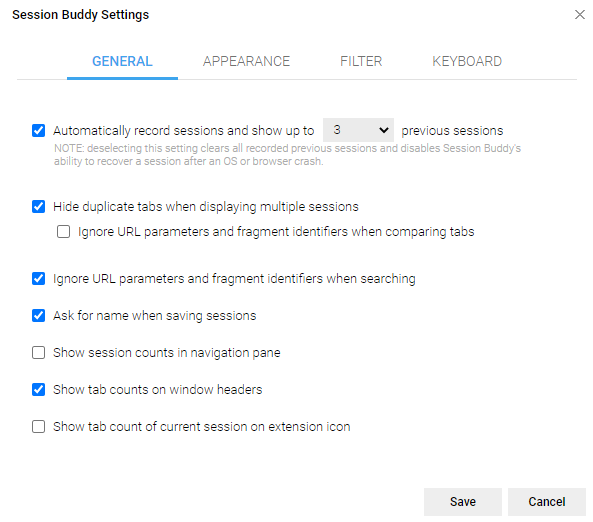
You can reach the above settings tab by clicking on the gear icon on the top-right corner. The settings dialogue box has a lot many options to choose from. But even the default settings work just perfect.
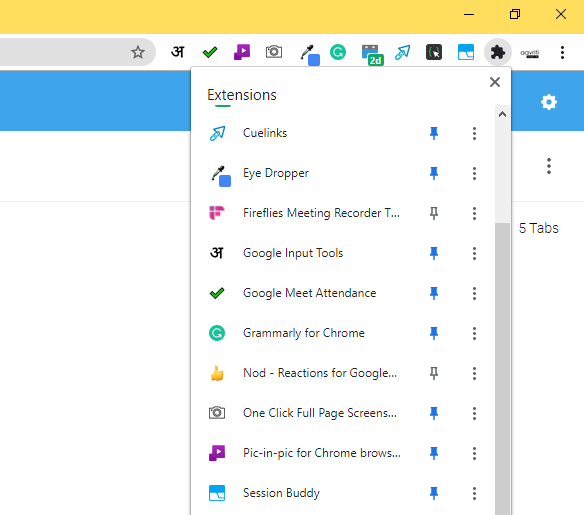
You should ideally pin the extension to the taskbar. Above is the screenshot of a few extensions I use. The last one on the list is Session Buddy. If the Pin Icon shows in blue, it means the extension is pinned and can be accessed from the address bar with just one click.
I hope after reading this you would have found the solutions for Saving and Restoring Google Chrome tabs. Queries and suggestions are most welcome below in the comment section.
Very useful! Thank you!
Most welcome 🙂